 CollectorCtrl
CollectorCtrl Copilot
The CollectorCtrl Copilot is a fleet-wide AI assistant built directly into the CollectorCtrl dashboard. Instead of hunting through pages, filters, and YAML, you simply ask — and the Copilot answers using your live fleet data, shows you exactly how it found the answer, and can propose changes that nothing executes until a human approves.
The Copilot can propose changes, but it can never apply them on its own. Every mutating action is presented as an inline approval card and is only executed after an explicit human decision. Every proposal, approval, and rejection is written to the audit log.
1. Prerequisites
The Copilot requires an AI provider to be configured by an administrator:
1. Open BYO-AI Integration
In the CollectorCtrl web dashboard, navigate to Admin → BYO-AI Integration.
2. Configure a Provider
Choose your provider — OpenAI, Anthropic, Google Gemini, or any OpenAI-compatible endpoint (self-hosted or third-party) — and enter the API credentials and model.
3. Start Asking
Open the Copilot from any page. If no provider is configured yet, the Copilot will point you to the settings page instead of failing silently.
All AI traffic goes to the provider you configured — CollectorCtrl does not route your fleet data through its own AI service. Diagram rendering is fully self-contained with no external CDN calls.
Advanced Model Tuning (Admin → BYO-AI Integration)
Administrators can fine-tune how the Copilot behaves without touching any code:
| Setting | Default | Guidance |
|---|---|---|
| Temperature | 0.1 | How predictable answers are. Low (0–0.2) is precise and consistent — most reliable for configs, OTTL, and tool calls (recommended). High (0.7+) gives more varied wording but a higher chance of malformed tool calls and retry loops. Does not affect cost. |
| Max Output Tokens | 2,048 | Maximum length of each individual Copilot reply — not the whole conversation. Prevents runaway token billing and timeouts; raise it only if replies look truncated. |
| Custom Model ID | — | Type any model ID your provider supports — you're not limited to the preset list. |
| Base URL Override | — | Point at any OpenAI-compatible endpoint (required for custom providers). |
Your API key is stored encrypted in the database, and the UI shows a confirmation once a key is saved.
You don't need a paid AI plan to try the Copilot: Google Gemini offers a free tier at Google AI Studio (e.g. gemini-2.0-flash), Groq Cloud hosts free high-speed models (https://api.groq.com/openai/v1), OpenRouter tags free models with :free, and a local Ollama instance (http://localhost:11434/v1) keeps everything 100% private on your own hardware.
2. Opening the Copilot
The Copilot is a single, persistent panel available on every page of the dashboard:
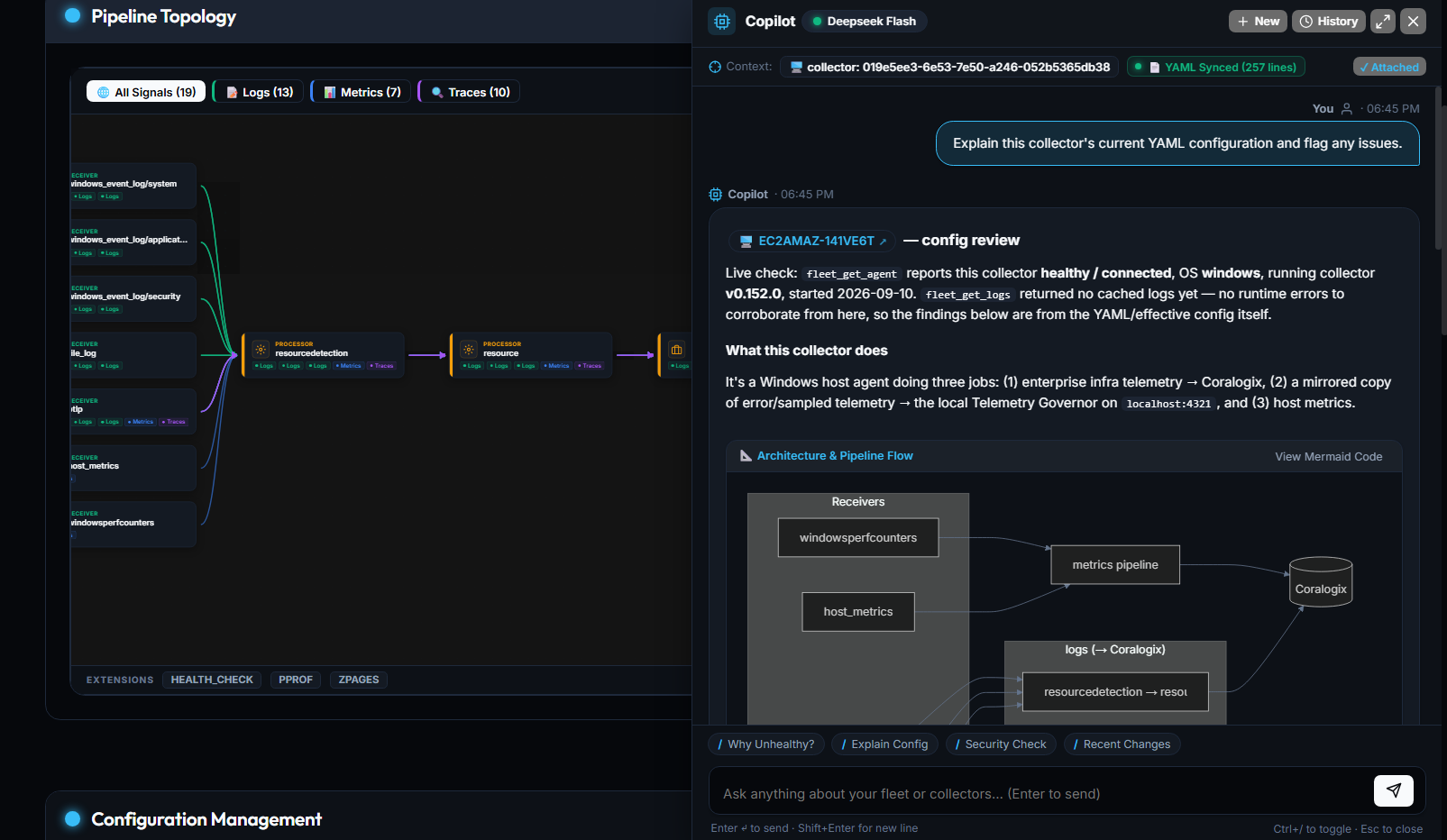 Expand
- Click the floating Copilot button in the corner of any page, or
- Press Ctrl + / anywhere in CollectorCtrl.
The panel remembers its state: close the browser, hit refresh, or come back tomorrow — the Copilot reopens exactly where you left it, conversation intact.
Make the Workspace Yours
| Action | How |
|---|---|
| Toggle the panel | Ctrl + / or the floating button |
| Close / go back | Esc |
| Send a message | Enter |
| Dock as a side rail | Default — keep working while you chat |
| Expand to full screen | Click the expand control for a focused conversation |
| Resize | Drag the panel edge to your preferred width |
The Copilot fully supports all four CollectorCtrl appearances — dark, light, blue, and crimson — with chat bubbles, code blocks, tables, and diagrams that adapt automatically.
3. Asking Questions
Ask in plain English. The Copilot doesn't guess — it queries your actual fleet through a secure toolbelt (agent inventory, health status, telemetry analytics, audit history, templates, packages) and answers with live data.
Try questions like:
- "Which collectors are unhealthy right now?"
- "Give me a fleet health summary — counts by status, environment, and version."
- "What collector versions are running across the fleet?"
- "Why is this collector down? Pull its recent logs and find the error."
- "Which log patterns are generating the most volume?"
Built for Large Fleets
The Copilot is designed to stay fast and accurate as your fleet grows:
- Fleet health summaries — instead of listing thousands of agents, the Copilot leads with aggregate counts by status, environment, OS, and collector version, plus the top collectors needing attention.
- Log-based root-cause analysis — it can pull the tail of a collector's cached logs (collector, supervisor, or sidecar) where errors cluster, and can request a live log pull from a connected agent when cached data isn't enough.
- Paginated, indexed lookups — fleet queries are paginated and backed by indexed search, so answers stay snappy on large fleets.
Suggested Prompts That Know Where You Are
When you open the Copilot, you'll find suggested prompts tailored to the page you're on:
- Fleet view — health summaries, version breakdowns, upgrade candidates.
- Collector detail page — root-cause analysis, config explanation, security checks.
- Telemetry Governor — noise, volume, and cardinality insights.
The suggestions follow you as you navigate, so the right question is always one click away.
It Understands "This"
The Copilot knows what you're looking at. On a collector page, "explain this config" or "is this endpoint secure?" just works — it sees the collector you're viewing, including the live contents of the config editor, even your unsaved edits. A context chip at the top of the panel shows what's attached, and you can detach it anytime.
4. Evidence, Not Vibes — the Agent Reasoning Trace
Every answer comes with a collapsible Agent Reasoning trace showing each tool the Copilot consulted, whether it succeeded, and what it found. You can always verify where a claim came from before acting on it.
You: Which collectors are unhealthy right now?

Copilot: 2 collectors are currently unhealthy…
         ▸ Agent Reasoning
             ✓ fleet_list_agents (status=unhealthy) — 2 results
             ✓ fleet_get_agent (otel-prod-07) — config push failed 12 min ago
             ✓ audit_query (limit=5) — last change by j.smith at 14:02
5. Approving Actions Inline
Ask the Copilot to make a change — "restart the unhealthy agents in dev" — and it prepares the action, then presents an approval card right in the chat:
- What will run — the exact operation and target selector.
- Blast radius — how many collectors are affected.
- Full diff — the complete configuration change, before and after.
- One-click Approve / Reject — no navigating to a separate settings page.
Nothing executes without a human decision, and every decision is recorded in the audit log. Proposals that are ignored expire automatically; expired approval cards are removed from restored conversations.
Confirming an action is a human-only privilege. Deployments can also require that the proposer and approver be different people (two-person rule). A viewer-role user gets read-only answers and nothing more — the Copilot can only see and do what you can.
6. Clickable Answers — the Connected UI Journey
When the Copilot mentions a collector, template, policy, or package, it appears as a clickable chip in the conversation. Click it and you're taken straight to that component — no searching, no filtering. Answers become starting points.
Every page, collector, and filter combination also has its own URL, so you can bookmark or share exactly what you're looking at — and the browser Back/Forward buttons work as expected.
7. Architecture Diagrams, Rendered in Chat
Ask how your telemetry flows — "draw my pipeline topology" — and the Copilot renders rich, interactive architecture diagrams directly in the conversation:
- Toggle between the visual diagram and the source code with one click.
- Diagrams automatically match your selected theme.
- Rendering is fully self-contained — no external CDN calls.
8. Apply to Editor — Recommendation to Config in One Click
When the Copilot suggests a configuration change, YAML blocks come with an Apply to Editor button that places the recommendation directly into the collector's config editor for your review.
If your editor already has unsaved changes, the Copilot asks before anything is replaced — your work is never silently overwritten.
9. Chat History
Every conversation is saved automatically, private to your user account:
- The New chat ⌄ menu lists your previous sessions, auto-titled from your first question.
- Revisit last week's investigation, continue it, delete conversations you no longer need, or start fresh at any time.
- The last 50 conversations per user are kept.
10. Security & Privacy
The Copilot inherits CollectorCtrl's security model end to end:
| Guarantee | Detail |
|---|---|
| Your permissions are its permissions | Tools are filtered by your role — a viewer gets read-only answers, and the LLM literally cannot see tools you cannot use. |
| No self-approval | Confirming an action is a human-only privilege; proposers and approvers can be required to be different people. |
| Everything is audited | Proposals expire if ignored; approvals, rejections, and executions are written to the audit log. |
| Privacy controls carry over | PII redaction and your configured AI guardrails apply to Copilot conversations exactly as they do elsewhere. |
| Your AI, your choice | Works with your configured provider (OpenAI, Anthropic, Gemini, or any OpenAI-compatible endpoint) under Admin → BYO-AI Integration. |
| Rate-limit friendly | On a free or capped AI tier, the Copilot tells you plainly when to retry instead of dumping raw error JSON — and it's economical with tokens by design: only core tool schemas are sent every turn, specialized tools are fetched on demand, and replies are capped by the Max Output Tokens setting. |
11. Troubleshooting
| Symptom | Cause | Resolution |
|---|---|---|
| Copilot says no provider is configured | BYO-AI settings are incomplete. | Configure a provider under Admin → BYO-AI Integration. |
| "Rate limit reached, retry later" message | Your AI provider quota is exhausted. | Wait for the provider window to reset, or switch to a higher-capacity model/key. |
| A reply ends abruptly mid-sentence | The Max Output Tokens cap (default 2,048) was hit. | Ask an administrator to raise Max Output Tokens under Admin → BYO-AI Integration → Advanced Model Tuning. |
| Copilot wording varies between identical questions | Temperature is set high. | Lower Temperature toward 0–0.2 in Advanced Model Tuning for deterministic answers. |
| Copilot answers but offers no actions | Your role is read-only (e.g., Viewer). | Ask an administrator to grant the relevant permissions to your role. |
| An approval card disappeared | The proposal expired before a decision was made. | Ask the Copilot to propose the action again, then approve promptly. |
| You see the old per-page AI drawer | The legacy AI Assistant drawer is still available in this release. | It will be retired in a future release as the Copilot takes over — prefer the Copilot panel. |
Want to query your fleet from an external AI assistant like Claude Desktop or Cursor instead? The same toolbelt powers the MCP Server Protocol.