 CollectorCtrl
Install on Windows Server (MSI)
Deploy CollectorCtrl on Windows Server 2016+ with native Windows Service integration.
Prerequisites
- Operating System: Windows Server 2016+, Windows 10, or Windows 11 (64-bit)
- Privileges: Administrator privileges
- Network Ports (Server):
4320(TCP / WebSocket) — Agent OpAMP communication4321(TCP / HTTP) — Web Console and REST API
- Agent Nodes: OpenTelemetry Collector installed or binary available (e.g.
C:\Program Files\OpenTelemetry Collector\otelcol-contrib.exe)
Part 1: Install CollectorCtrl Management Server
Step 1: Download the Server Installer
Download the latest Windows installer package from the CollectorCtrl Releases page on GitHub:
- PostgreSQL Edition: Recommended for production fleets — includes an offline bundled PostgreSQL installer for single-click local database setup, or connects to an existing PostgreSQL database.
Step 2: Run the Server Setup Wizard
- Right-click the downloaded
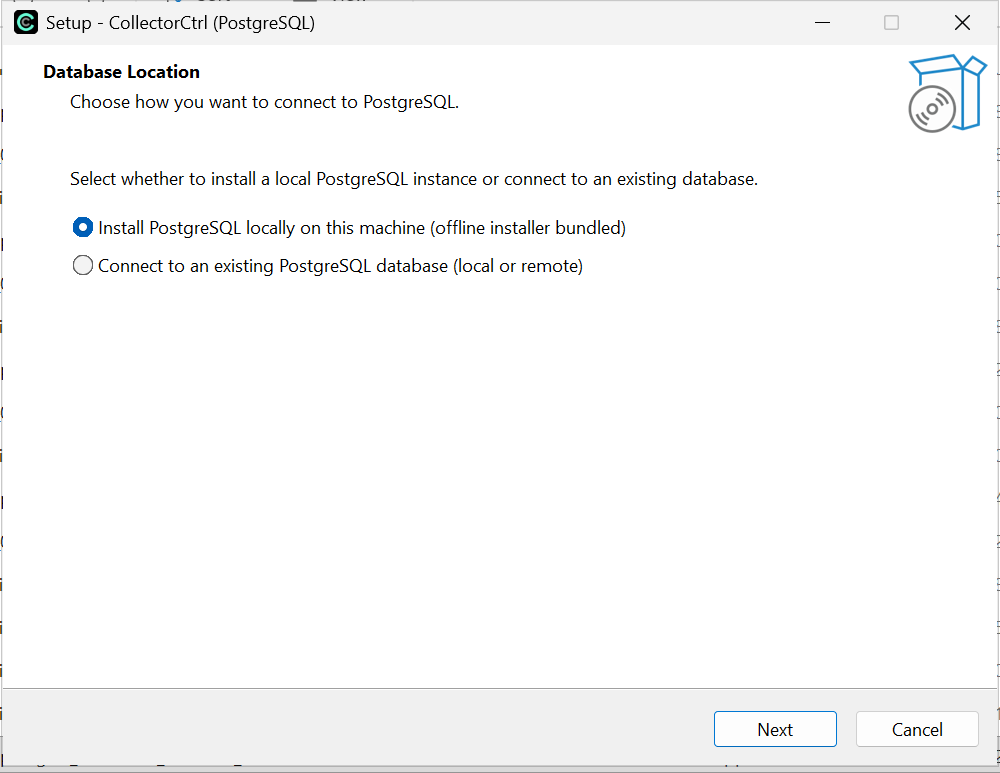
.exeand select Run as Administrator. - Database Location: Choose how you want to connect to PostgreSQL:
- Install PostgreSQL locally on this machine (offline installer bundled): Recommended for all-in-one local setup. The installer automatically extracts and configures a local PostgreSQL 15 instance without needing external downloads.
- Connect to an existing PostgreSQL database: Select this if you already run PostgreSQL locally or on a remote server.
 Expand
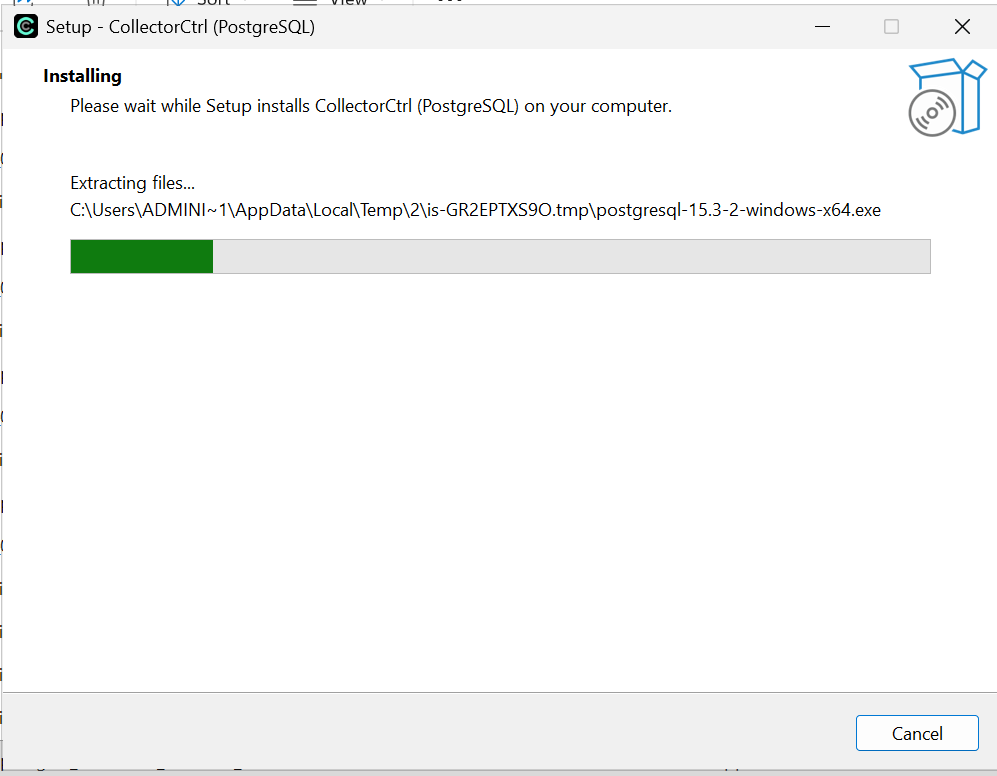
- Click Next to proceed with installation. The installer extracts files, runs the bundled PostgreSQL installer (if local installation was selected), sets up the database schema, and registers the CollectorCtrl Windows Service:
 Expand
- Complete the wizard. The
CollectorCtrlservice starts automatically.
Step 3: Access the Web Console
Open your web browser and navigate to:
👉 http://localhost:4321 (or http://<YOUR_SERVER_IP>:4321 if connecting remotely)
Default credentials:
- Username:
admin - Password:
admin
The dashboard is served over plain HTTP by default. Be sure to change your administrator password immediately upon your first login. For production environments exposed to a network, terminate TLS with a reverse proxy (IIS, Nginx, or Caddy) in front of port 4321.
Part 2: Managing the Server Windows Service
The CollectorCtrl server runs in the background as a native Windows Service (CollectorCtrl). You can start, stop, or check its status using PowerShell (as Administrator) or the Services console (services.msc):
# Check service status
PS >Get-Service CollectorCtrl

# Restart service
PS >Restart-Service CollectorCtrl

# Stop service
PS >Stop-Service CollectorCtrl
Part 3: Install the Supervisor Agent
Install the Supervisor agent on every Windows server where you want to manage an OpenTelemetry Collector.
Step 1: Download the Supervisor Installer
Download the latest Supervisor installer (collectorctrl-supervisor_..._windows_amd64.exe) from the Releases page or from the Get Started page on your CollectorCtrl server.
Step 2: Run the Supervisor Setup Wizard
Right-click the installer .exe and select Run as Administrator.
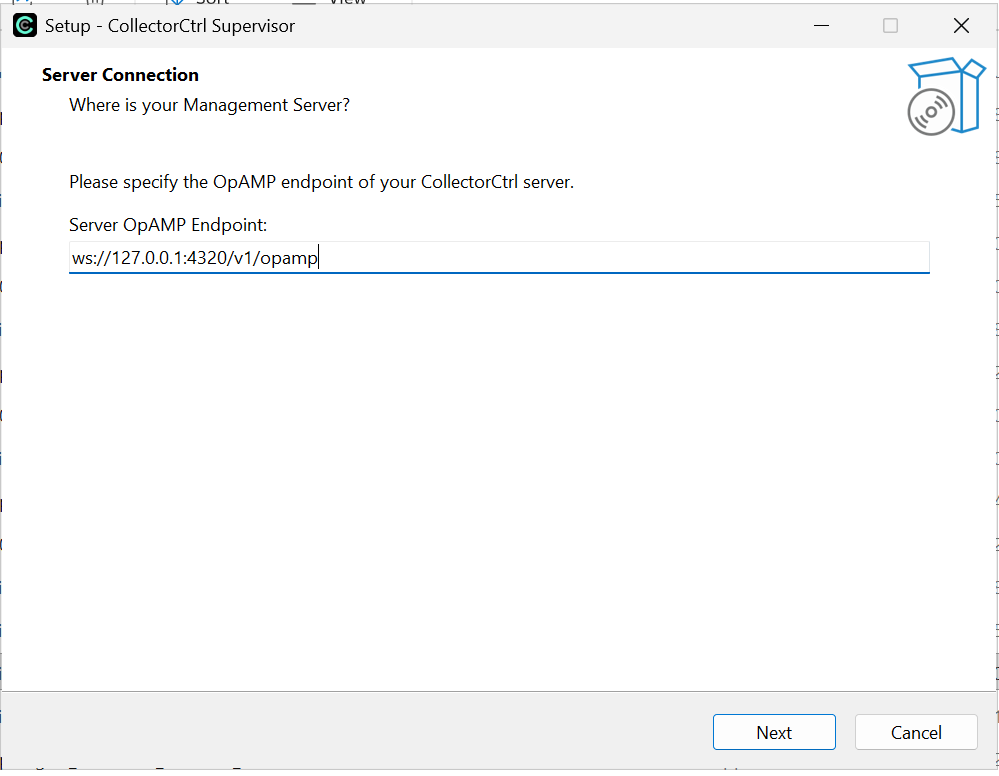
1. Server Connection
Enter the OpAMP WebSocket endpoint of your CollectorCtrl Management Server:
- For agents running on the same machine:
ws://127.0.0.1:4320/v1/opamp - For remote agents across the network:
ws://<YOUR_SERVER_IP>:4320/v1/opamp
 Expand
Click Next.
2. Collector Configuration
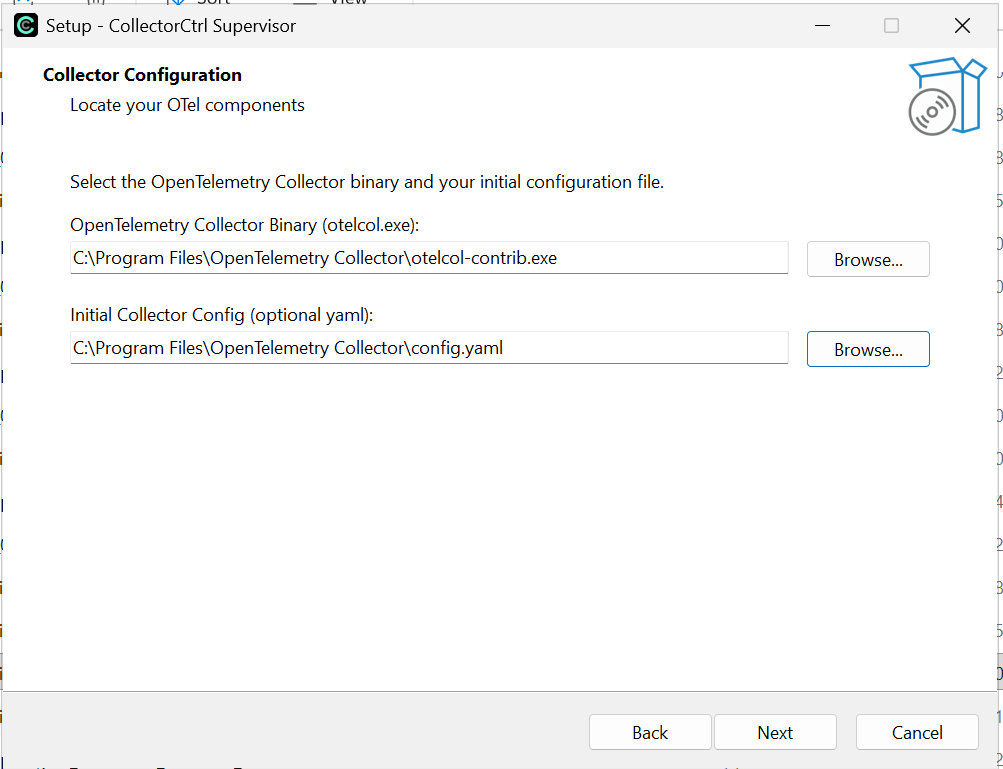
Specify the paths to your OpenTelemetry components on the host:
- OpenTelemetry Collector Binary (
otelcol.exe): Browse to the location of your collector binary (e.g.C:\Program Files\OpenTelemetry Collector\otelcol-contrib.exe). - Initial Collector Config (optional yaml): Browse to your initial collector configuration file (e.g.
C:\Program Files\OpenTelemetry Collector\config.yaml).
 Expand
Click Next.
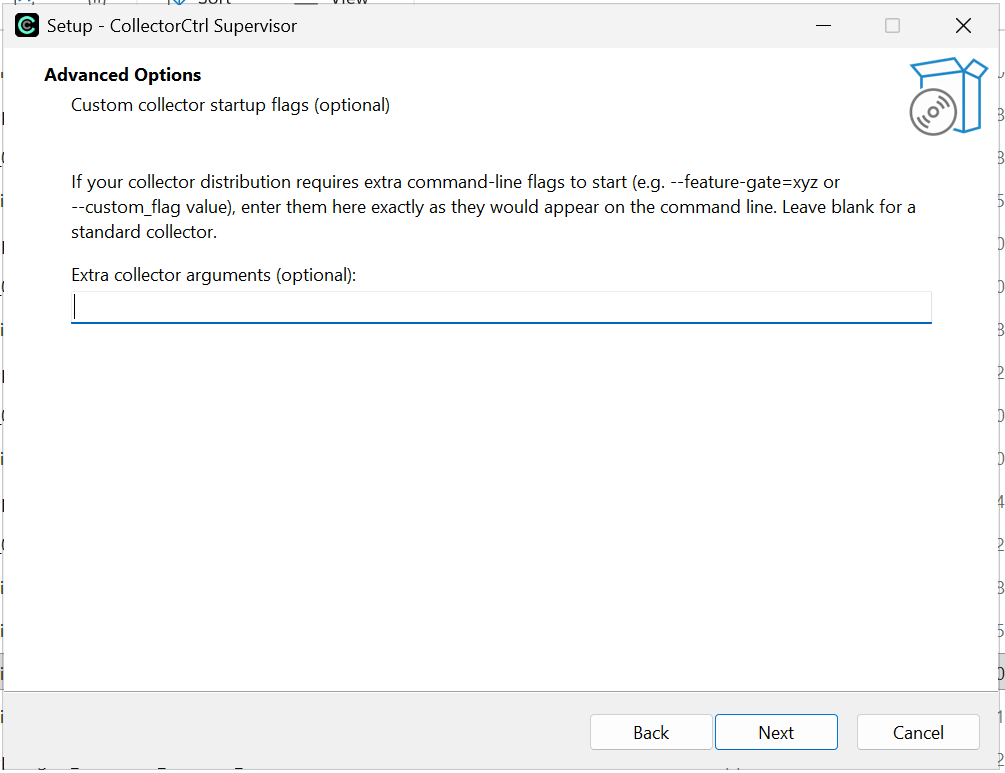
3. Advanced Options (Optional)
If your OpenTelemetry Collector requires specific startup arguments or feature gates (such as --feature-gate=xyz), enter them here. For standard collectors, leave this field blank.
 Expand
Click Next.
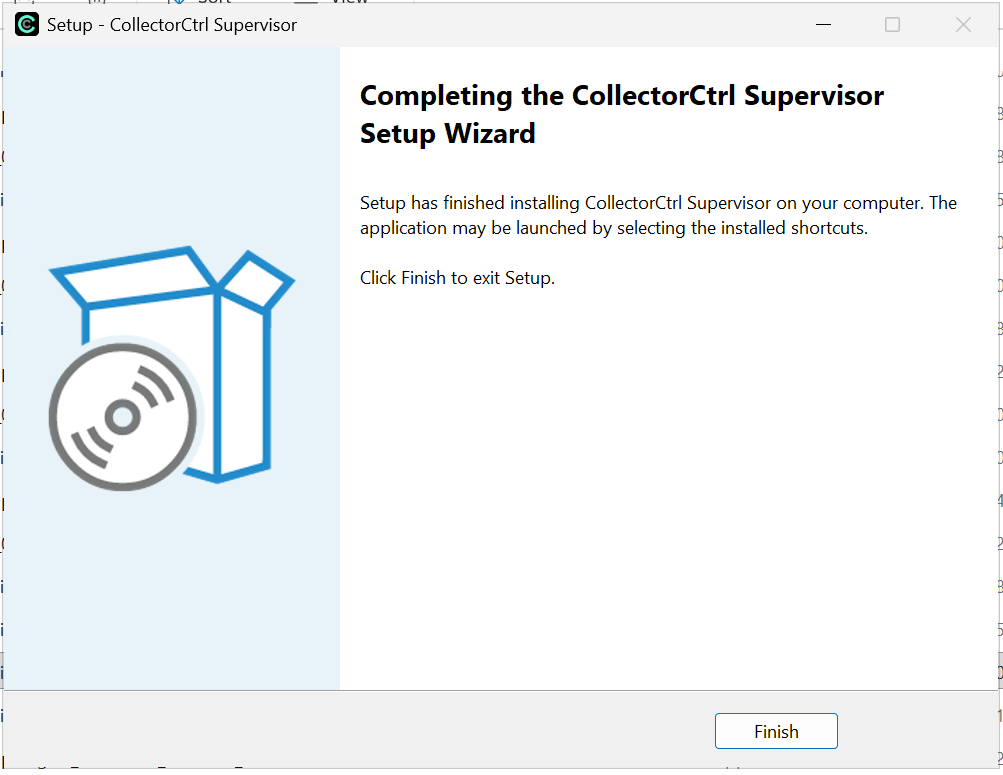
4. Complete Installation
Click Finish to complete setup.
The installer automatically:
- Generates
C:\Program Files\CollectorCtrl Supervisor\supervisor.yamlwith your parameters - Registers the
CollectorCtrlSupervisorWindows Service - Starts the service in the background
 Expand
Step 3: Verify in Fleet Overview
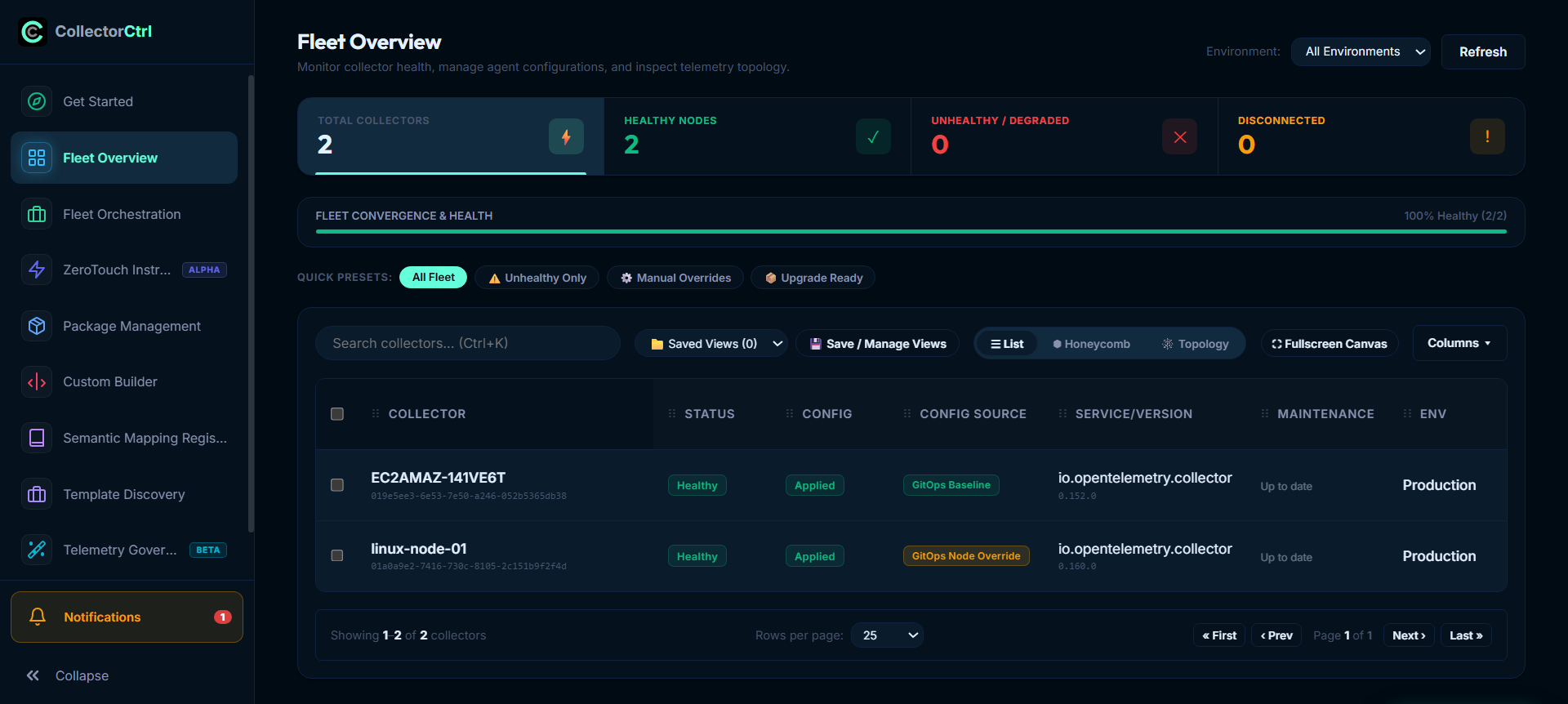
Navigate to Fleet Overview in your CollectorCtrl Web Console (http://<YOUR_SERVER_IP>:4321).
Within 30 seconds, your Windows collector node will check in and appear with:
- Status:
Healthy - Config:
Applied - Service/Version: Displays the detected collector binary and version
- Environment: Assigned environment tag (e.g.
Production)
 Expand
Service Management Reference
Supervisor PowerShell Commands
Manage the Supervisor service using PowerShell as Administrator:
# Check supervisor service status
PS >Get-Service CollectorCtrlSupervisor

# Restart supervisor
PS >Restart-Service CollectorCtrlSupervisor

# Stop supervisor
PS >Stop-Service CollectorCtrlSupervisor
Configuration Reference
Default Windows Paths
| Component | Path |
|---|---|
| Server Binary | C:\Program Files\CollectorCtrl\server.exe |
| Server Config & DB | C:\ProgramData\CollectorCtrl\ |
| Server Logs | C:\ProgramData\CollectorCtrl\logs\server.log |
| Supervisor Binary | C:\Program Files\CollectorCtrl Supervisor\supervisor.exe |
| Supervisor Config | C:\Program Files\CollectorCtrl Supervisor\supervisor.yaml |
| Supervisor Logs | C:\ProgramData\CollectorCtrlSupervisor\supervisor.log |
supervisor.yaml Template
server:
  endpoint: 'ws://YOUR_SERVER_IP:4320/v1/opamp'
  tls:
    insecure_skip_verify: true

capabilities:
  reports_effective_config: true
  reports_own_metrics: true
  reports_own_logs: true
  reports_own_traces: true
  reports_health: true
  accepts_remote_config: true
  reports_remote_config: true
  accepts_restart_command: true
  accepts_packages: true

agent:
  executable: 'C:\\Program Files\\OpenTelemetry Collector\\otelcol-contrib.exe'
  passthrough_logs: true
  config_files:
    - 'C:\\Program Files\\OpenTelemetry Collector\\config.yaml'

storage:
  directory: 'C:\\ProgramData\\CollectorCtrlSupervisor\\storage'

telemetry:
  logs:
    level: info
    output_paths:
      - 'C:\\ProgramData\\CollectorCtrlSupervisor\\supervisor.log'
Firewall Requirements
Ensure the following ports are open on the CollectorCtrl server:
| Port | Protocol | Direction | Purpose |
|---|---|---|---|
| 4320 | TCP / WebSocket | Inbound to Server | OpAMP agent communication and heartbeat streaming |
| 4321 | TCP / HTTP | Inbound to Server | Web Console and REST API |
| 13133 | TCP | Localhost only | OpenTelemetry Collector health check extension |
ℹ️ No inbound ports are required on agent nodes. Supervisor agents connect outbound to the server on port 4320.
PowerShell Firewall Rules (Run on Server):
# Allow OpAMP WebSocket
PS >New-NetFirewallRule -DisplayName "CollectorCtrl OpAMP" -Direction Inbound -LocalPort 4320 -Protocol TCP -Action Allow

# Allow Web Console & API
PS >New-NetFirewallRule -DisplayName "CollectorCtrl Web Console" -Direction Inbound -LocalPort 4321 -Protocol TCP -Action Allow
Next Steps
- Create your first Fleet Policy — Define targeting rules and deploy configurations fleet-wide
- Upgrade Supervisor Remotely — Remotely push new collector versions with rollback protection
- Configure SSO & Authentication — Integrate OIDC/SAML for enterprise team access